 AIVane
TUTORIAL · ABOUT 5 MIN
Your first automation
You will automate filling in a customer form. You do it once while AIVane records, AI turns your steps into an automation, and from then on AIVane fills in the form for you.
- 01
Open the Get started checklist
Open AIVane. The Get started with AIVane checklist sits above your account in the sidebar; select it to open the steps beside your work.
- 02
Open the practice page
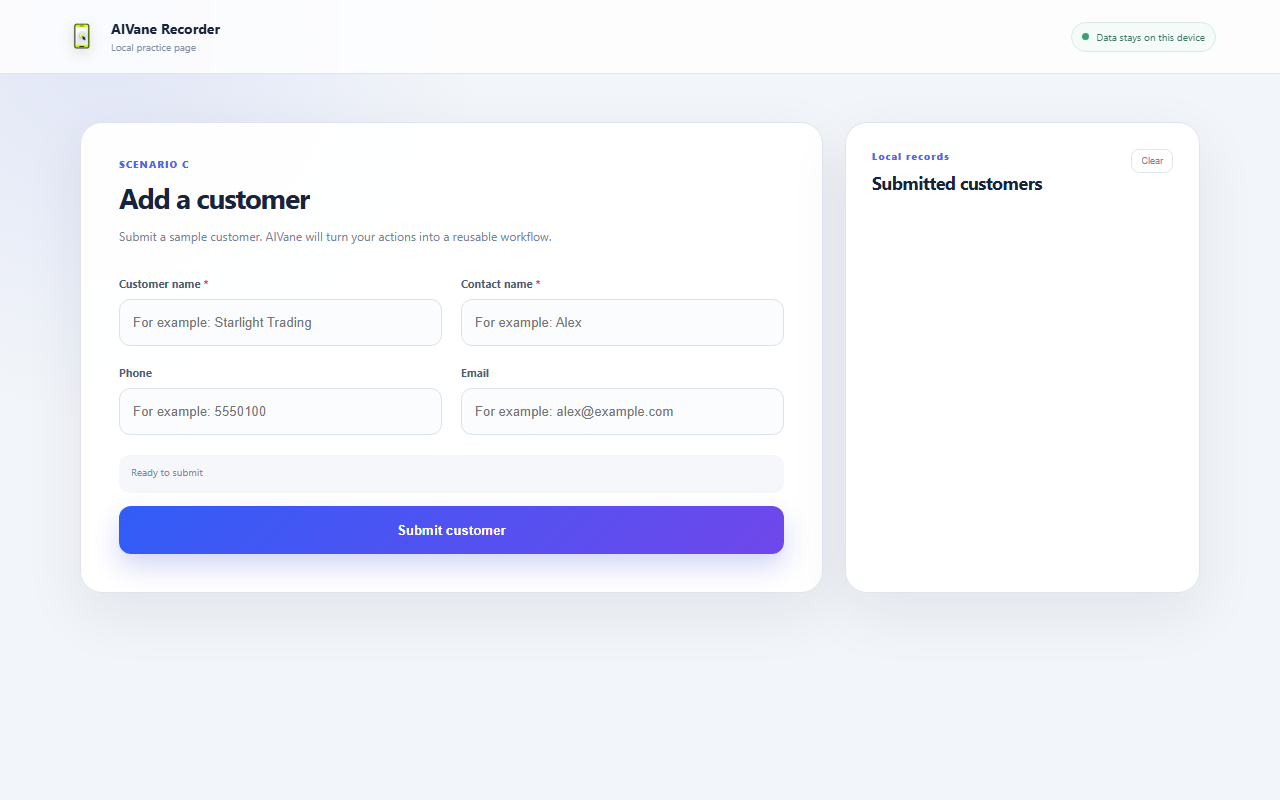
Choose Open practice page. A customer form opens in your browser. It runs on your own computer, and what you type there stays on it.
- 03
Record filling in the form
Choose Start recording and pick the browser that shows the practice page. Fill in one customer, select Submit customer, then choose Finish for review.
Stuck? Your browser isn't listed? The AIVane browser extension has to be installed and turned on; the recording window shows how.
- 04
Let AI build the automation
On the recording's review page, choose Create automation. AI turns your steps into an automation and saves it to My automations.
Stuck? Asked to set up AI? Sign in to use Hosted AI, or add your own API key under Settings › AI model.
- 05
Run it
Open the new automation and choose Run automation. Stay on the page and watch it fill in the form by itself until the run finishes.
Stuck? A step failed? Open the run to see which step and why, then ask the assistant on the automation's page to fix it.
- 06
See the result
Open the practice page again and look at Local records: your automation added a new customer. It repeats those steps whenever you run it.